This tutorial covers the basics of placing notes on a score in ScoreTail.
ScoreTail has two main modes.
Select, move, and edit existing notes.
Place new notes on the score.
N to enter note input mode, Esc to return to select mode.

Before placing a note, select its duration using number keys. The default is a quarter note.
| Key | Duration |
|---|---|
| 1 | Whole note |
| 2 | Half note |
| 3 | Quarter note |
| 4 | Eighth note |
| 5 | 16th note |
| 6 | 32nd note |
In note input mode, move your mouse over the score to see a ghost note (semi-transparent preview) showing where the note will be placed.
The vertical mouse position determines the pitch. Notes snap to staff lines and spaces for easy positioning.
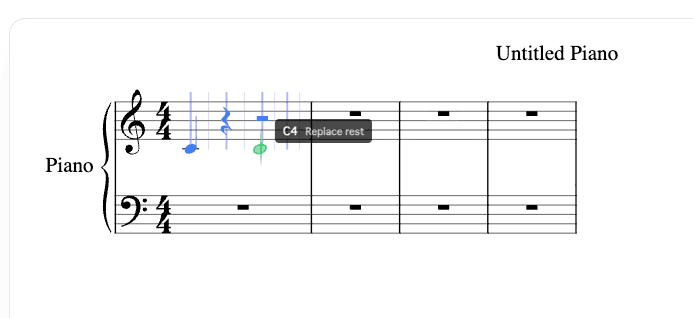
In note input mode, a grid is displayed within measures. Notes snap to grid positions for precise placement. Adjust the grid resolution for fine rhythmic patterns.
The behavior changes depending on where your mouse is. The ghost note display indicates the current mode.
The position on the grid is empty. Click to place a new note.
An existing note with the same duration is at this position. Click to add a note to the chord.
A rest is at this position. Click to replace it with a note.
A note with a different duration exists at this position. Normal click does nothing.
Shift + Click — Force add as chord even in conflict mode.
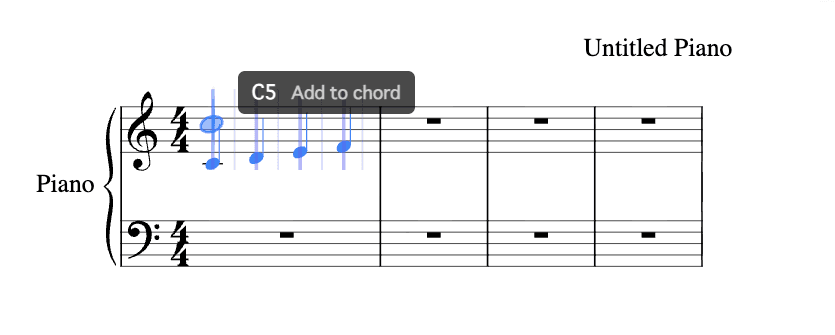
Use voices to write multiple independent melodies on the same staff. Voice 1 is the default.
After placing notes, return to select mode (Esc) to edit them.
| Key | Action |
|---|---|
| ↑ / ↓ | Semitone up/down |
| Alt+↑ / Alt+↓ | Octave up/down |
| . | Toggle dot |
| R | Toggle rest |
| Del | Delete |
| Ctrl+Z | Undo |
| Ctrl+Y | Redo |
Let's input the first 4 measures of "Twinkle, Twinkle, Little Star".
