ScoreTail LogoScoreTail
ScoreTail LogoScoreTail© 2026 ScoreTail
ScoreTail LogoScoreTail
DashboardDocsAboutFree Sheet Music
Log in
Back to Tutorials

Adding Ties and Slurs

Ties and slurs both draw a curved arc between notes, but they mean different things. Here's how to tell them apart and use each one.

1

Tie vs. Slur

At a glance they look the same, but the musical meaning is completely different.

⌒

Tie

Connects two notes of the same pitch into one long sound. The second note isn't played again — the first note just keeps ringing.

⌣

Slur

Marks a group of notes to be played smoothly (legato). Unlike a tie, a slur can connect notes of any pitch.

See the difference in the image below.
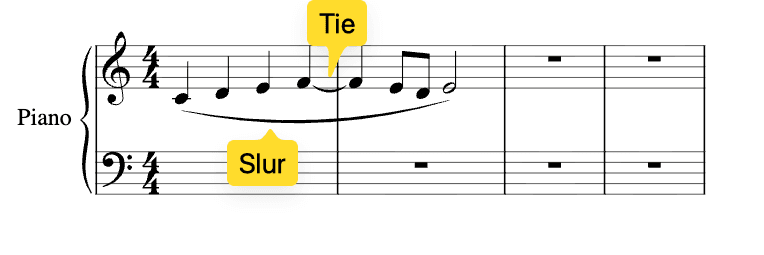
Comparison of tie and slur — tie connecting same pitch notes vs slur connecting different pitches
Left: Tie (same pitch) / Right: Slur (legato)
2

Adding a Tie

Select a note and press T. That's all there is to it.

Steps

  1. Press Esc to enter SELECT mode.
  2. Click the note you want to tie to the next one.
  3. Press T. A curved arc appears connecting it to the next note of the same pitch.

T works as a toggle — press it again to remove the tie.

After pressing T, it should look like this:
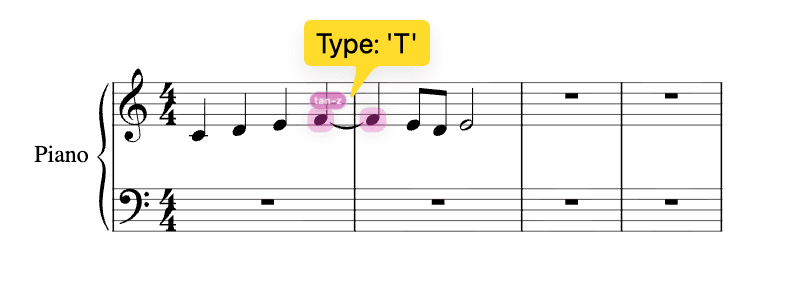
Score showing a tie after selecting a note and pressing T
Select a note and press T — a tie appears connecting to the next note of the same pitch
3

Things to Know About Ties

A few things to keep in mind:

  • ✓Both notes must be the same pitch (e.g., C4 → C4).
  • ✓The tie connects to the very next note of the same pitch.
  • ✓Ties can cross barlines — this is the standard way to write a note that lasts into the next measure.
4

Removing a Tie

Select the note where the tie starts, then press T again. You can also right-click the note and choose "Remove Tie".

Method 1

Select the note where the tie starts, then press T again.

Method 2

Right-click the note and choose "Remove Tie" from the context menu.

5

Adding a Slur

Select all the notes you want to slur, then right-click to add it.

Steps

  1. Press Esc to enter SELECT mode.
  2. Click the first note of the phrase.
  3. Shift+click — Shift+click the last note to extend the selection.
  4. Right-click and choose "Add Slur".

Tip: You can also right-click a single note to mark a slur start, then right-click the final note to mark the slur end.

Right-click the selection and choose Add Slur, as shown below.
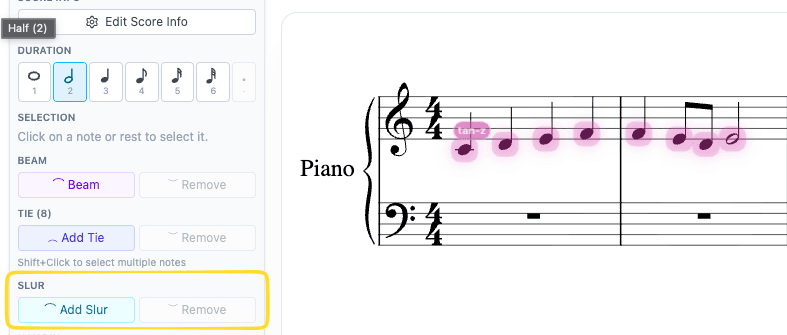
Right-click context menu showing Add Slur option after selecting multiple notes
Shift+click to select multiple notes, then right-click → "Add Slur"
6

Removing a Slur

Select any note inside the slur, right-click, and choose "Remove Slur".

7

Try It: Tie + Slur

Here's a quick exercise to practice both.

  1. Select the last note in a measure (e.g., a half note C).
  2. Press T to tie it to the next measure.
  3. Now Shift+click from the first to the last note of a phrase.
  4. Right-click → Add Slur.

Next Steps

  • Creating Tuplets
  • Adding dynamics markings
  • Adding Tempo Markings
ScoreTail LogoScoreTail© 2026 ScoreTail
Sheet MusicDocsPrivacyTermsLicensesFeedback