This tutorial walks you through creating a new score from scratch in ScoreTail. Choose from 16 instrument templates and start composing or arranging right away.
When you log in to ScoreTail, you'll see the dashboard. From here, you can create a new score.
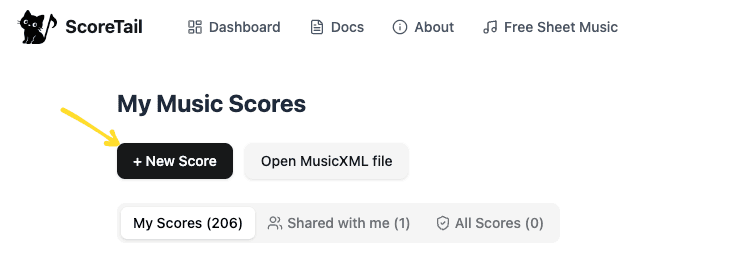
A selection of instrument templates will be displayed. Choose one that matches your needs. There are 16 presets available.
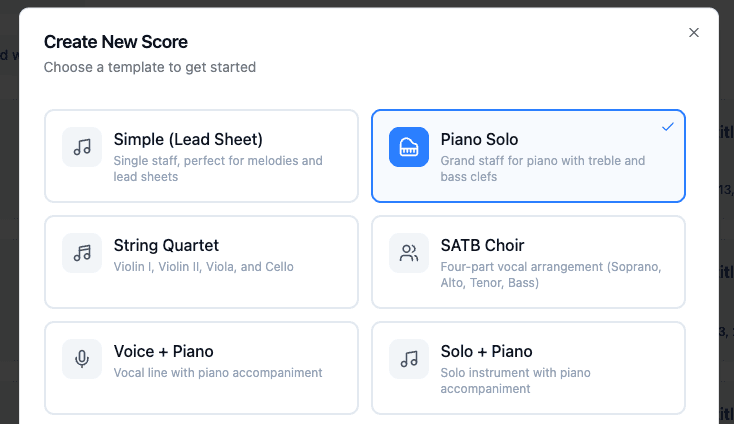
| Simple (Lead Sheet) | Single staff, perfect for melodies and lead sheets |
| Piano Solo | Grand staff for piano with treble and bass clefs |
| Guitar | Solo guitar (standard notation) |
| Organ | Three-staff organ (manuals + pedal) |
| Duet | Two-part arrangement |
| Trio | Three-part arrangement |
| String Quartet | Violin I, Violin II, Viola, and Cello |
| Piano Trio | Violin, Cello, and Piano |
| SATB Choir | Four-part vocal arrangement (Soprano, Alto, Tenor, Bass) |
| Voice + Piano | Vocal line with piano accompaniment |
| Jazz Combo | Sax, Trumpet, Piano, Bass, Drums |
| Rock/Pop Band | Vocals, Guitar, Bass, Keys, Drums |
| Woodwind Quintet | Flute, Oboe, Clarinet, Horn, Bassoon |
| Brass Quintet | 2 Trumpets, Horn, Trombone, Tuba |
| Solo + Piano | Solo instrument with piano accompaniment |
| Small Orchestra | Fl, Ob, Cl, Bsn, Hn, Strings |
Once you've selected a template, click the create button.
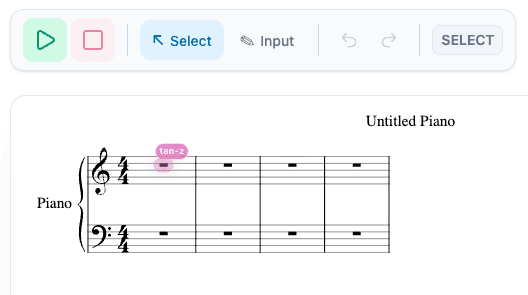
After the score is created, you'll be taken to the editor. A blank score with 4 measures is ready for you to start editing right away.
Go back to the dashboard and use the score menu to rename your score.
New measures are automatically added when you input notes up to the last measure.
You can change the key signature after creating the score.
The default is 4/4 time. You can change it after creating the score.
