This tutorial covers ScoreTail's sharing features, including inviting users, creating public links, and real-time collaborative editing.
ScoreTail lets you set different access levels for each score.
| Role | View | Edit | Manage Sharing |
|---|---|---|---|
| Owner | ✓ | ✓ | ✓ |
| Editor | ✓ | ✓ | — |
| Viewer | ✓ | — | — |
| Public Link | ✓ | — | — |
Score sharing settings are managed from the editor.
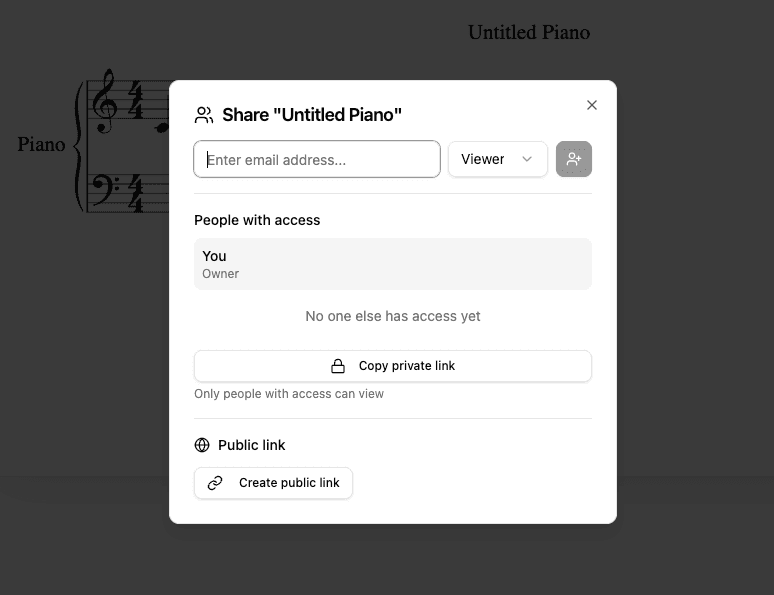
Search by email address or name to grant specific users access to your score.
Can view and edit the score. All editing operations are available, including adding, modifying, and deleting notes.
Can only view the score. Playback and part switching are available, but the score content cannot be changed.
As the owner, you can change shared users' access levels at any time from the share dialog.
Only the score owner can manage access (invite users, change roles, or remove users).
Public links let you share scores with anyone, even people without a ScoreTail account. Anyone with the link can view the score without logging in.
Recipients of a public link can view the score without creating an account or logging in.
Access via public link is read-only. To allow editing, invite the user as an Editor instead.
Logged-in users can click "Edit your copy" to fork the score to their own account and edit it freely.
If you no longer need the public link, click the delete button to disable it. Once deleted, the link will no longer provide access.
Private links are for users who already have access. They're a convenient way to send the score URL to invited users.
Users must be logged in to ScoreTail to access the score via a private link.
Users invited as Editors can edit the same score simultaneously in real time.
Changes made by one editor are instantly reflected on other editors' screens. No need to save manually.
Other users' selected positions are shown with colored cursors, so you can see who is editing where at a glance.
Annotations (notes and comments) on shared scores are visible to all users with access.
